-
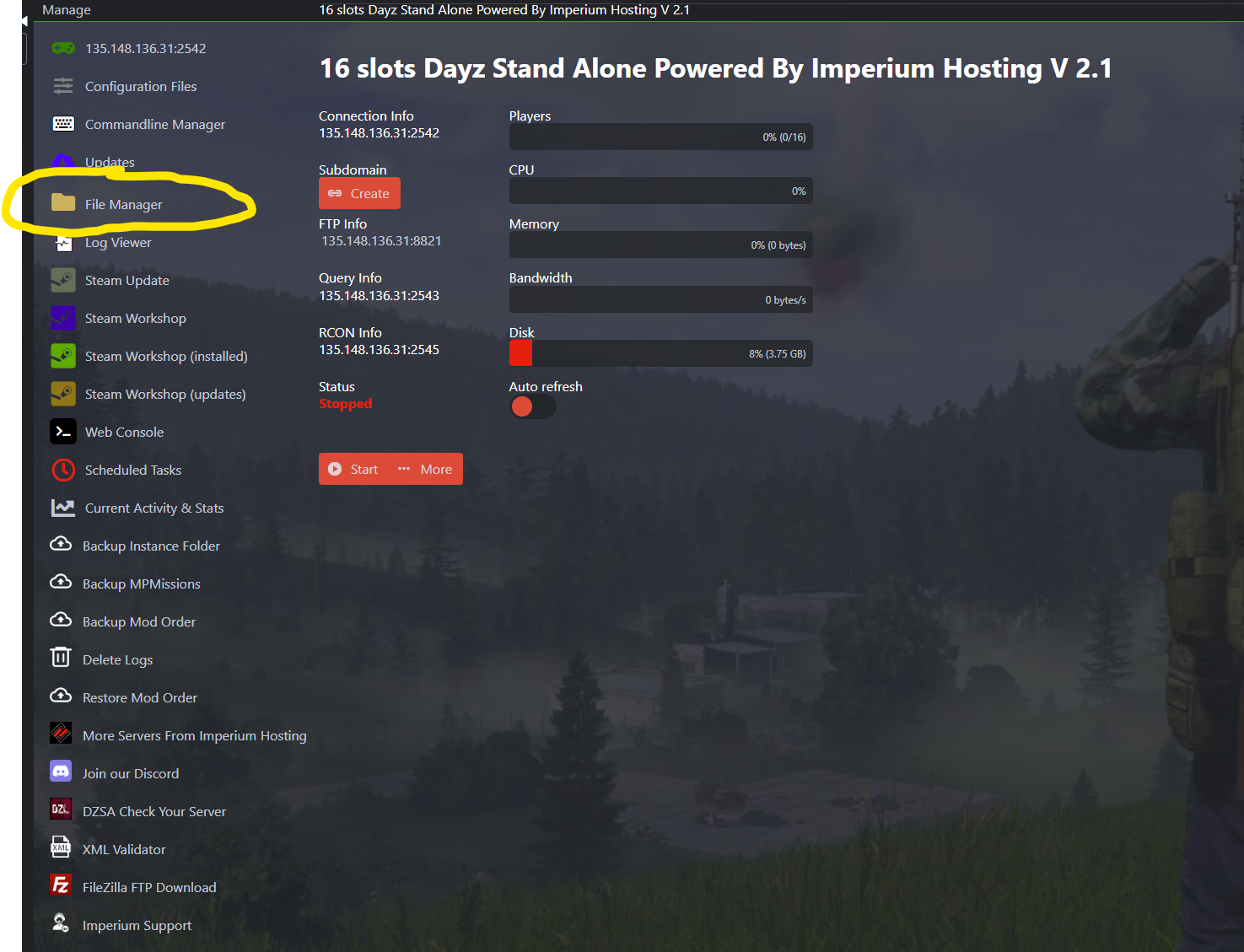
Log in to your Imperium Hosting control panel and open the server you want to manage.
-
Click on the “File Manager” tab.
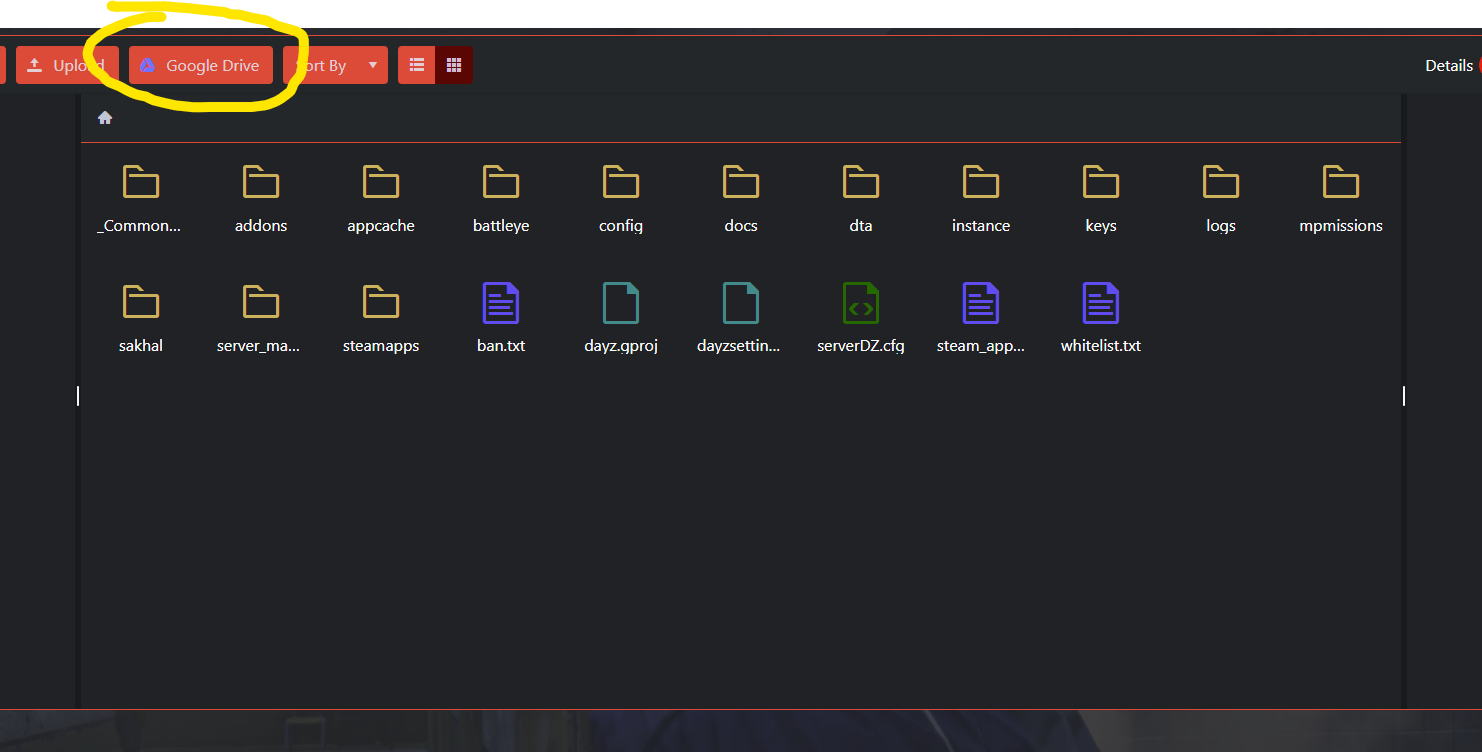
3. In the File Manager window, click the “Google Drive” button at the top of the screen, located between the “Upload” and “Sort By” buttons.
4. Sign in to your Google account, or create a free Gmail account if you don’t have one.
5. Once signed in, return to the main File Manager screen for your server.
6. Navigate to the folder or file you want to back up. Right-click on it, then select “Backup to Google Drive.”
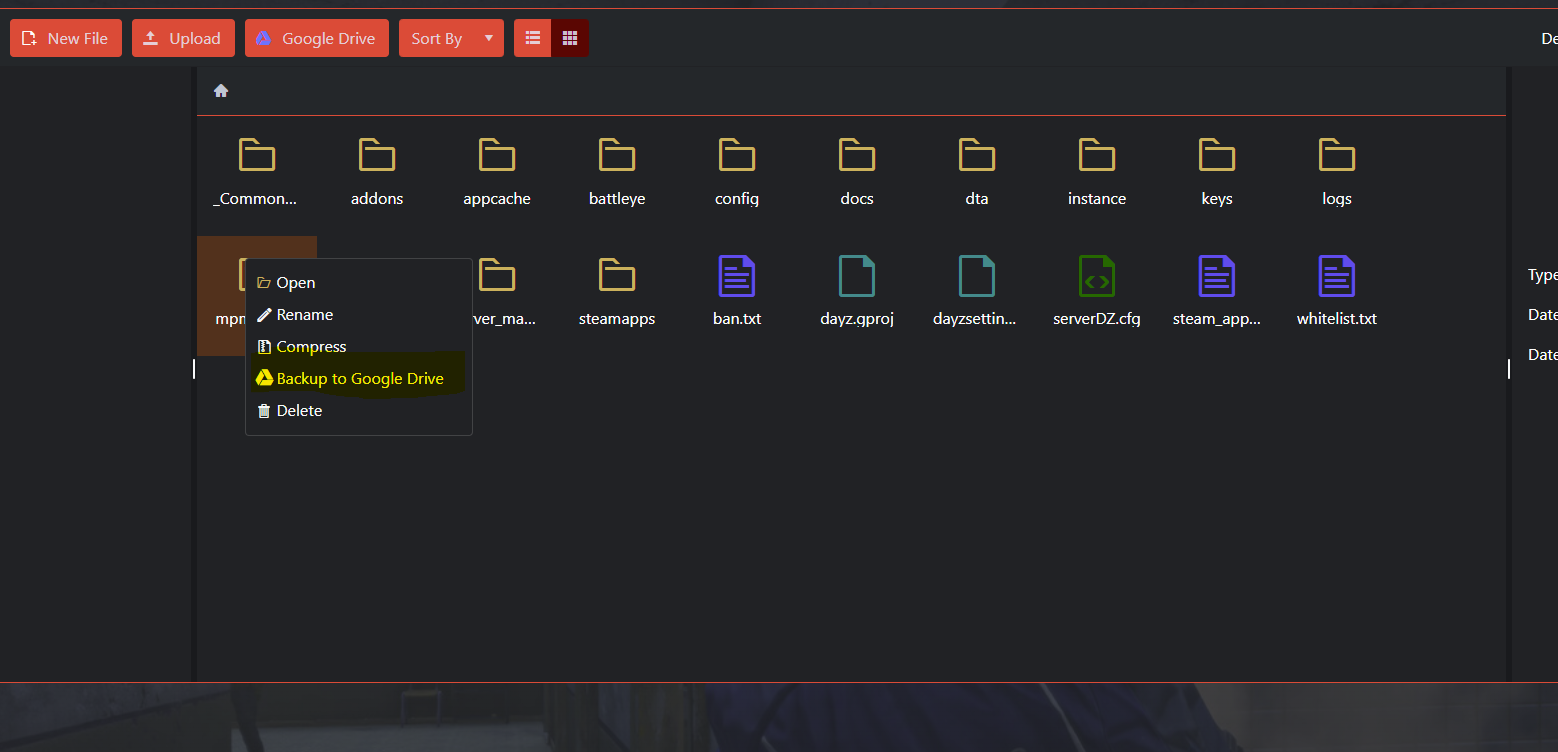
7. Wait for the upload to complete.
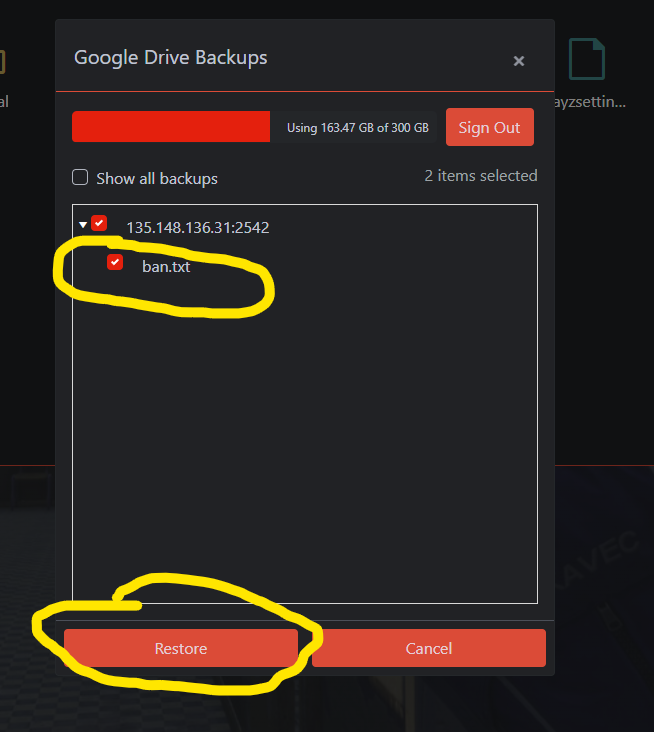
8. To view your backups, click the “Google Drive” button again at the top. You’ll see a list of your uploaded files and folders.
9. To restore a file or folder, simply select it from the list and click the “Restore” button.
And that’s it—your files are now safely backed up and easy to restore whenever needed! If you need additional support please consider making a support ticket and our Imperium Hosting staff would be please to assist you.
