In rare cases, the Steam Update function within your Imperium Hosting control panel may fail. This is typically caused by issues or outages on Steam’s end. When this occurs, you can follow the steps below to manually force the update — a method we’ve found to be highly reliable.
Steps to Force a Steam Update:
-
Log into your Imperium Hosting control panel.
Navigate to the server you’re trying to update. -
Stop your server.
Make sure the server is turned off before proceeding.
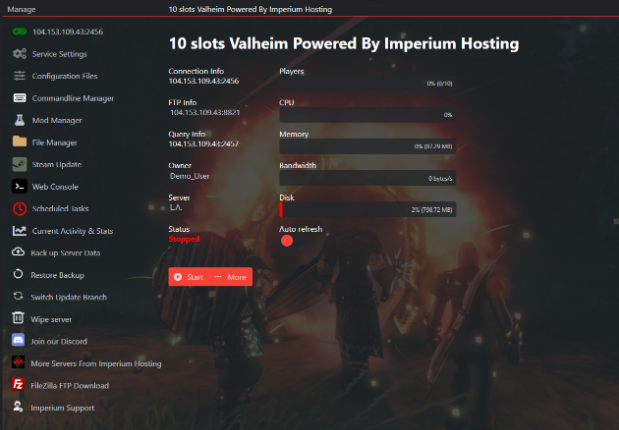
3. Go to the “File Manager” tab.
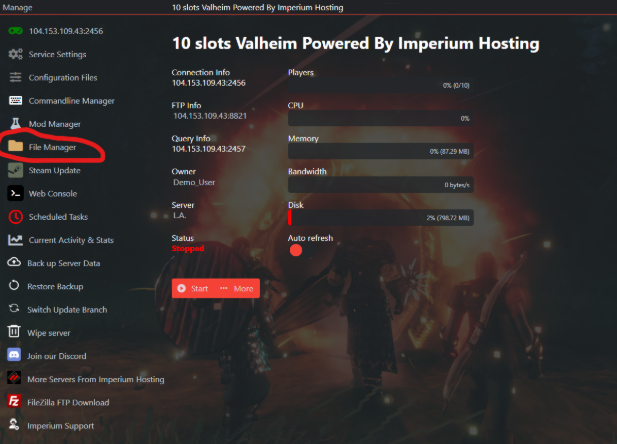
4. Locate the steamapps folder.
This folder is usually found in the main directory of your game server.
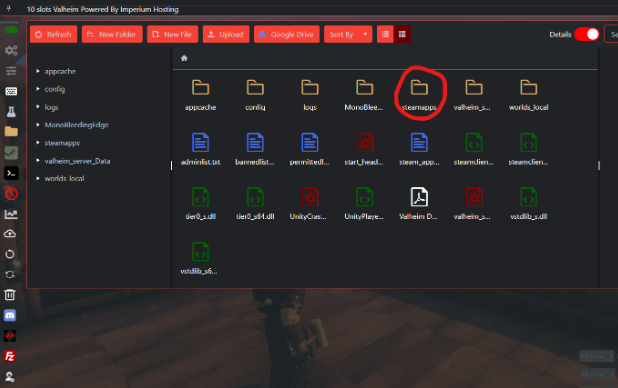
5. Right-click on the steamapps folder and delete it.
This will clear any cached or corrupted update data.
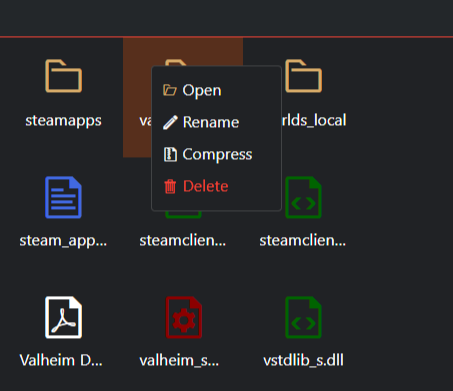
6. Return to your main control panel.
Click the green controller icon to go back to the overview of your server.
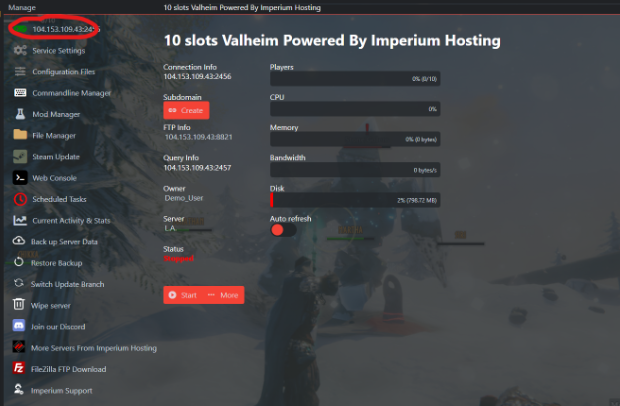
7. Run the “Steam Update” function.
Let the update process run — this will now fetch the latest files directly from Steam.
8. Start your server and join!
Once the update is complete, power your server back on and you're good to go!
If you run into any issues during this process, don’t hesitate to contact our support team via Discord or a support ticket. We’re always here to help.
Imperium Hosting – Rejecting automation. Embracing personalization.
