In this tutorial, we’ll guide you through the steps to upload a local ASKA world save from your PC to your Imperium Hosting dedicated server.
Step-by-Step Instructions:
-
Log in to your Control Panel and access your ASKA server.
-
Ensure the server is fully stopped before proceeding.
-
On your local PC, open File Explorer.
-
Navigate to the following directory:
C:\Users\YOUR USERNAME\AppData\LocalLow\Sand Sailor Studio\Aska\data -
Locate the savegame folder you want to upload. This folder will begin with
savegame_(e.g.,savegame_ac8e3_220425234054). -
Right-click the entire savegame folder and choose “Compress to” > “Zip file.”
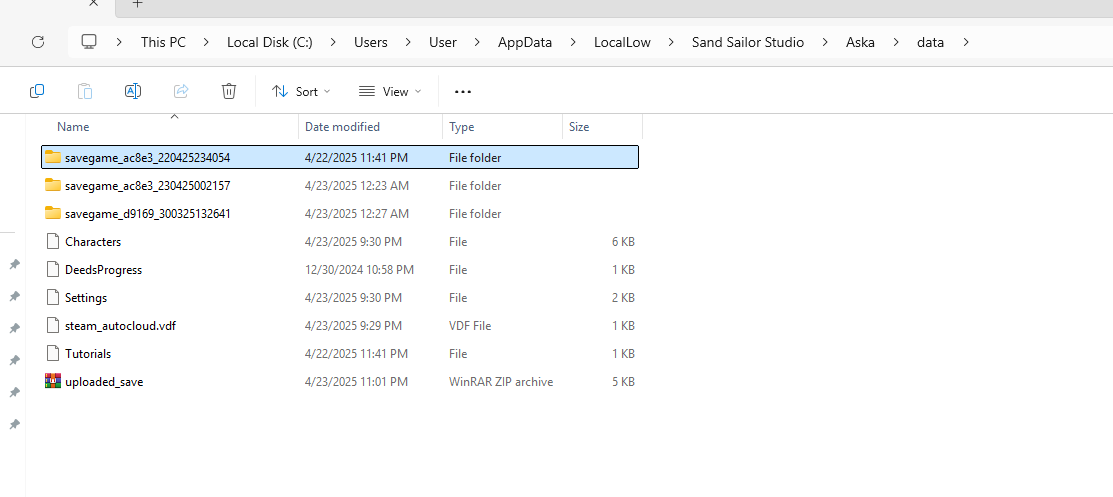
7. Once zipped, rename the file to:
uploaded_save.zipReturn to your server’s Control Panel and navigate to the File Manager tab.
8.
9. Click the “Upload” button and select theuploaded_save.zipfile from your computer.
10. After uploading, click the “Upload World to Imperium Hosting Cloud” button.
This will extract the contents of your zip file, place the savegame folder in the appropriate directory, and automatically update your server's server properties.txt with the correct Save ID. Once complete, your world will be ready to launch and play.
If you need additional support please feel free to submit a support ticket.
